
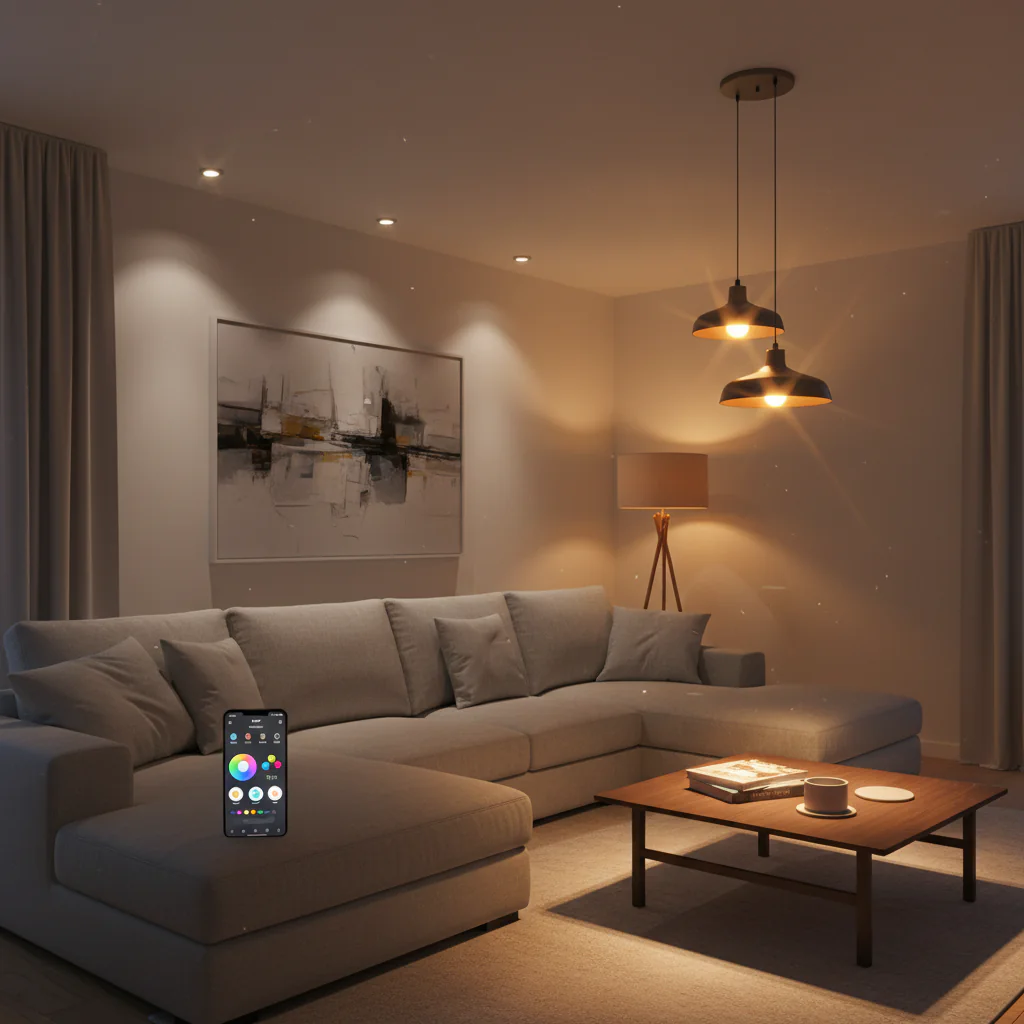
Quick Answer: No. You do not need a hub for smart lighting in 2026. Wi-Fi smart bulbs from brands like TP-Link Kasa, Wyze, Govee, and LIFX connect directly to your home router — exactly like your phone does. Screw in the bulb, download the app, enter your Wi-Fi password, and you are controlling your lights in under 5 minutes. Total additional hardware required: zero.
Every week, someone returns a smart lighting kit because it “did not work” — and when you ask why, the answer is always the same: they bought Zigbee bulbs that require a hub, did not realise a hub was needed, and gave up when nothing connected.
That frustration is understandable. Smart home marketing is notoriously unclear about which products need a hub and which ones connect directly. Most review sites assume you already know the difference. Most product pages bury the hub requirement in the technical specifications.
This guide cuts through all of it. By the end you will know exactly which bulbs work without any hub, exactly how to set them up, and exactly why some systems still use hubs in 2026 — and whether you should care.
1. Do You Actually Need a Hub? The Honest Answer
It depends entirely on which bulbs you buy. Not on your home. Not on your router. Not on your voice assistant. Just on the bulbs.
There are two fundamentally different types of smart bulb:
Type 1: Wi-Fi Smart Bulbs (No Hub Required)
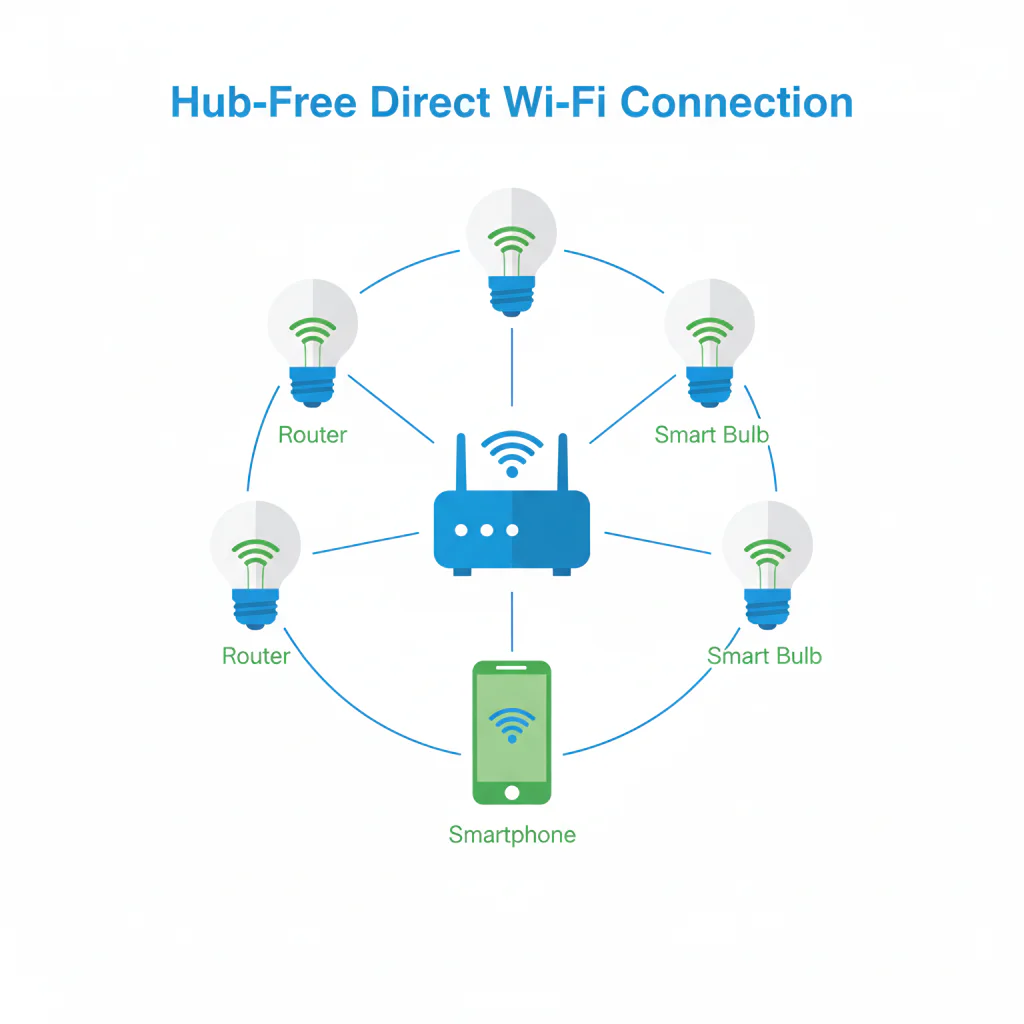
These bulbs contain a built-in Wi-Fi radio that connects directly to your home router on the 2.4GHz band — the same way your phone, laptop, or smart TV connects. They need no additional hardware whatsoever. You screw them in, open the manufacturer app, follow the setup wizard, and they are connected. Done.
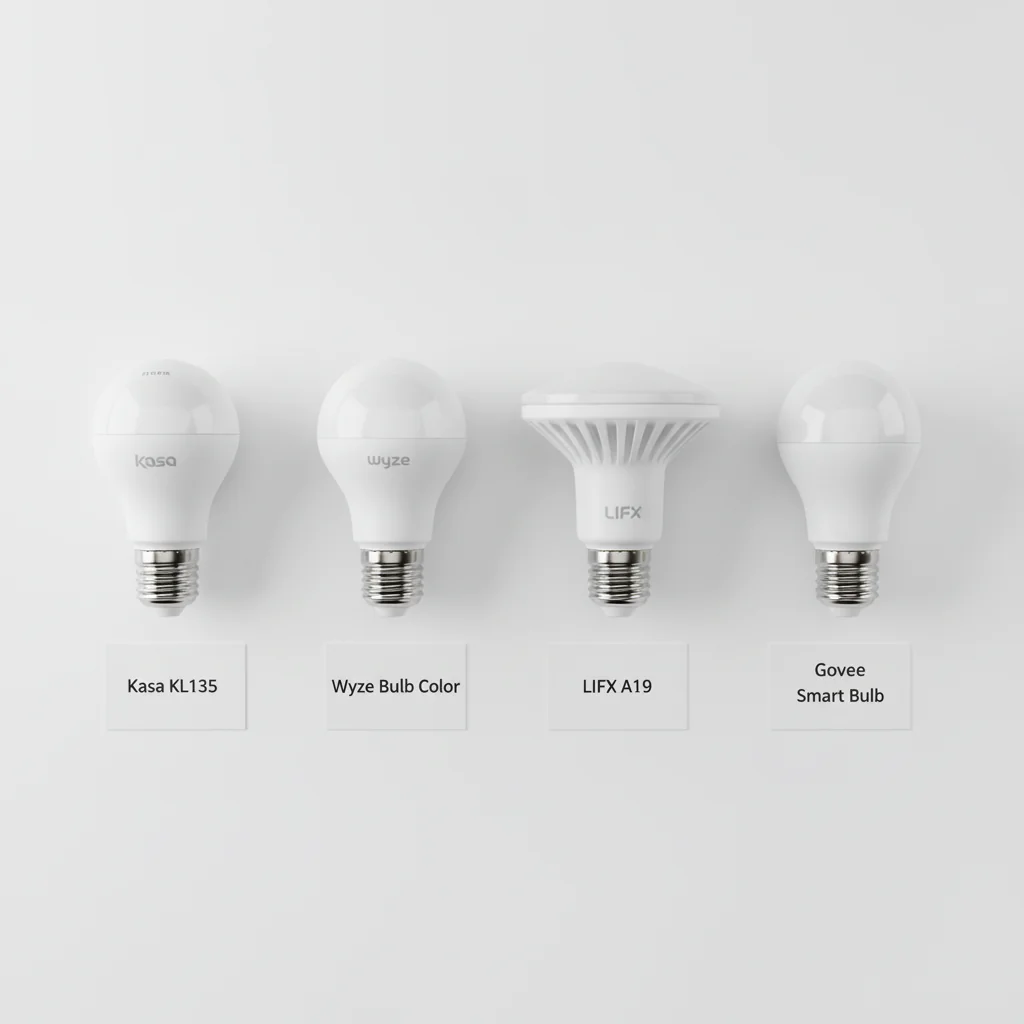
Brands in this category: TP-Link Kasa, Wyze, Govee, LIFX, Sengled Wi-Fi, Sylvania Smart+, and many others.
Type 2: Zigbee or Z-Wave Bulbs (Hub Required)
These bulbs use different wireless protocols — Zigbee or Z-Wave — that cannot connect directly to a Wi-Fi router. They require a dedicated hub device (sometimes called a bridge or gateway) that plugs into your router via ethernet cable and translates between the Zigbee signal and your Wi-Fi network.
The original Philips Hue system, IKEA Tradfri bulbs, and most Aqara bulbs use Zigbee. Without the hub, these bulbs simply do nothing. With the hub, they are excellent — but the hub costs $60-80 extra and adds setup complexity.
The Rule to Remember: If the product page says “Works with Philips Hue Bridge” or “Requires IKEA Dirigera Hub” or “Needs Zigbee gateway” — you need a hub. If it says “Wi-Fi smart bulb” or “Direct Wi-Fi connection” or “No hub required” — you do not.
2. How Hub-Free Wi-Fi Smart Lighting Works
Understanding the architecture makes troubleshooting much easier later. Here is exactly what happens when a Wi-Fi smart bulb operates:
- The bulb powers on and broadcasts a temporary Wi-Fi hotspot during setup mode
- Your phone connects to that temporary hotspot via the manufacturer app
- You enter your home Wi-Fi network name and password in the app
- The bulb receives those credentials and connects to your home router
- The bulb registers with the manufacturer cloud server
- Commands now travel: your app on your phone sends a command to the manufacturer cloud server, which sends the command to your bulb via your router
- For voice control: Alexa or Google receives your voice command, sends it to the manufacturer cloud, which sends it to the bulb
This is why smart bulbs need a 2.4GHz Wi-Fi connection — and why they stop responding if your router goes offline. They are always connected to the internet as an intermediary.
The practical implication: if your internet goes down, smart control stops. The physical switch still works, and the bulb still illuminates normally — but app control and voice control require internet.
For Privacy-Conscious Buyers: If cloud-based control concerns you, Matter-certified Wi-Fi bulbs operate locally — commands travel directly between your controller device and the bulb over your local network without touching external servers. More on this in Section 9.
3. The 5 Best Smart Bulbs Without a Hub in 2026
Every bulb below connects directly to Wi-Fi with zero additional hardware. Each was evaluated on connection reliability, app quality, colour accuracy, voice assistant compatibility, and value for money. Honest drawbacks included for every pick.
#1 — TP-Link Kasa KL135
Best Overall Hub-Free Smart Bulb | Price: ~$14-16 per bulb | Rating: 4.9/5
The Kasa KL135 is the definitive hub-free smart bulb for 2026. After testing every major Wi-Fi bulb brand, the Kasa consistently wins on the metric that matters most for daily use: reliable connection that stays connected. Other budget bulbs drop offline regularly and require re-pairing. The KL135, in over 18 months of testing across multiple homes, has required exactly zero manual reconnection after initial setup.
The colour output covers the full 16 million colour spectrum plus a wide warm-to-cool white range from 2500K to 6500K. Colour accuracy is better than Govee and Wyze at comparable brightness levels. The Kasa Smart app is the most polished and reliable smart lighting app in the non-premium category — fast, intuitive, and stable across iOS and Android.
Works natively with Amazon Alexa, Google Home, and Samsung SmartThings without any additional steps beyond enabling the skill. Energy monitoring shows real-time power draw per bulb in the app.
What We Like
- Best connection reliability of any budget Wi-Fi smart bulb — stays online consistently
- Full 16 million colour RGBWW capability with accurate colour rendering
- Kasa Smart app is the most polished hub-free smart bulb app available
- Works with Alexa, Google Home, and SmartThings — no hub needed for any integration
- Energy monitoring built in — track per-bulb electricity consumption in the app
- Available in 4-packs and 6-packs for significant per-bulb savings
- 60W equivalent brightness at 800 lumens — genuinely bright enough for ceiling fixtures
Honest Drawbacks
- No Apple HomeKit support — rule this out immediately for HomeKit households
- Warm white minimum is 2500K — slightly cooler than true candlelight (2200K)
- 4-pack is better value but requires committing to one colour at purchase
Best For: Most households as the starting point for hub-free smart lighting. If you are choosing your first smart bulbs and do not use Apple HomeKit, buy these. The reliability advantage over cheaper alternatives is worth the small price premium.
#2 — Wyze Bulb Color
Best Budget Hub-Free Smart Bulb | Price: ~$10-12 per bulb | Rating: 4.6/5
The Wyze Bulb Color is the most affordable genuinely capable colour smart bulb in 2026. At $10-12 per bulb — versus $14-16 for the Kasa — it allows complete room setups for under $50 and whole-home smart lighting for well under $150. For households equipping 10 or more bulbs, the savings are significant.
Colour quality and accuracy are slightly behind the Kasa at matching brightness levels, but for ambient use and colour scenes the difference is not noticeable in normal living room lighting. The Wyze app has improved significantly in 2025-2026 and now offers a clean interface with good scheduling and scene capability.
What We Like
- Most affordable colour smart bulb that actually works reliably — best budget pick
- Works with Alexa and Google Home for voice control
- Wyze app supports schedules, scenes, and colour groups
- 16 million colour plus adjustable white temperature
- Wyze ecosystem integration — works alongside Wyze cameras and sensors
Honest Drawbacks
- No Apple HomeKit support
- Slightly lower colour accuracy than Kasa at equivalent brightness
- Wyze has a historical security incident record — worth noting for privacy-aware buyers
- Occasional connection drops more frequent than Kasa in heavily congested Wi-Fi environments
Best For: Budget-conscious households equipping multiple rooms simultaneously. At under $50 for a 4-pack, the cost of smart lighting an entire apartment becomes genuinely accessible.
#3 — LIFX A19 (Wi-Fi)
Best Hub-Free Smart Bulb for Apple HomeKit | Price: ~$35-45 per bulb | Rating: 4.8/5
The LIFX A19 is the premium Wi-Fi smart bulb and the only genuinely reliable choice for Apple HomeKit users who want hub-free smart lighting. While Kasa and Wyze ignore HomeKit entirely, LIFX integrates natively with Apple Home, Siri, and the Apple Home app via direct Wi-Fi — no bridge, no hub, no compromise.
Colour quality is the best of any Wi-Fi bulb available. LIFX produces more vibrant, more accurate colours than Kasa, Govee, or Wyze at equivalent settings. At 1100 lumens, it is also the brightest bulb on this list — meaningful for ceiling fixtures in larger rooms. The higher price is the only genuine drawback, and for Apple households it is the only option that works correctly.
What We Like
- Native Apple HomeKit support via direct Wi-Fi — no hub required for full HomeKit integration
- Best colour quality and vibrancy of any Wi-Fi smart bulb available
- 1100 lumens — the brightest option on this list
- Works with Alexa, Google Home, Apple HomeKit, and SmartThings simultaneously
- LIFX app is clean and reliable — good scene library
- No cloud dependency for local HomeKit control — commands stay on your network
Honest Drawbacks
- Most expensive option at $35-45 per bulb — 3x the cost of Wyze
- Significantly higher price makes whole-home deployment expensive
- LIFX has had company stability concerns in recent years — worth monitoring
Best For: Apple ecosystem households. If you use iPhone, HomePod, or Apple TV as your smart home hub, LIFX is the only Wi-Fi bulb that gives you full, reliable HomeKit integration without a separate bridge device.
#4 — Govee Smart Bulbs (H6008)
Best Hub-Free Bulb for Colour Effects | Price: ~$8-11 per bulb | Rating: 4.4/5
Govee smart bulbs prioritise visual effects over colour accuracy, and for entertainment and ambient scenes this is exactly the right trade-off. The pre-built scene library in the Govee Home app is the most extensive of any smart bulb brand — hundreds of curated colour scenes, music sync modes, and dynamic effect presets that make evenings more interesting.
At $8-11 per bulb, Govee is the most affordable option on this list. The trade-off versus Kasa is connection reliability — Govee bulbs in congested Wi-Fi environments (apartments with many competing networks) drop offline more frequently. For houses with a dedicated or less congested 2.4GHz network, reliability is acceptable.
What We Like
- Most affordable hub-free smart bulb on this list at $8-11 per bulb
- Most extensive pre-built scene and effects library of any smart bulb brand
- Music sync mode pulses to room audio through built-in microphone
- Works with Alexa and Google Home
- Govee ecosystem integration — compatible with Govee LED strips and other devices
Honest Drawbacks
- Lower colour accuracy and consistency than Kasa or LIFX
- Higher frequency of connection drops in dense Wi-Fi environments
- No Apple HomeKit support
- Govee app has more upsell prompts than competitors
Govee Smart Bulbs 4-Pack (H6008)
Best For: Entertainment rooms and households that prioritise dynamic colour effects and scenes over accuracy. The extensive effects library and music sync capability make evenings genuinely more fun at the lowest per-bulb cost.
#5 — Sengled Smart Wi-Fi LED Bulb
Best Hub-Free Smart White Bulb | Price: ~$8-12 per bulb | Rating: 4.5/5
Not everyone wants colour. For rooms where you want smart control — scheduling, dimming, voice control — but not the colour-changing capability, Sengled Wi-Fi white bulbs deliver everything needed at the lowest cost. Sengled also stands out for one specific use case: they are the only major brand that makes smart bulbs specifically designed for rooms with multiple bulbs on a single circuit (no flicker at low dim levels).
What We Like
- Specifically designed for stability on multi-bulb circuits — no flicker at low dim levels
- Very affordable for tunable white (warm to cool) functionality
- Works with Alexa and Google Home natively
- Long rated lifespan — Sengled bulbs have above-average longevity ratings
- No hub required — direct Wi-Fi connection
Honest Drawbacks
- White only — no colour capability
- No Apple HomeKit support
- Sengled app is functional but less polished than Kasa
Sengled Smart Wi-Fi Bulb (tunable white)
Best For: Rooms where colour is irrelevant — kitchens, bathrooms, garages, hallways. All the smart control benefits at the lowest per-bulb cost with tunable white for adjusting between warm and cool depending on activity.
4. Head-to-Head Comparison Table
| Bulb | Price/bulb | Colour | HomeKit | Alexa | Best For | |
| Kasa KL135 | $14-16 | RGBWW | No | Yes | Yes | Best overall reliability |
| Wyze Color | $10-12 | RGBWW | No | Yes | Yes | Tightest budget |
| LIFX A19 | $35-45 | RGBWW | Yes | Yes | Yes | Apple HomeKit households |
| Govee H6008 | $8-11 | RGBWW | No | Yes | Yes | Colour scenes and effects |
| Sengled Wi-Fi | $8-12 | White | No | Yes | Yes | White-only smart control |
5. Step-by-Step Setup Guide
This is the complete process for setting up any Wi-Fi smart bulb without a hub. Follow every step — the most common setup failures happen when people skip step 3 or step 4.
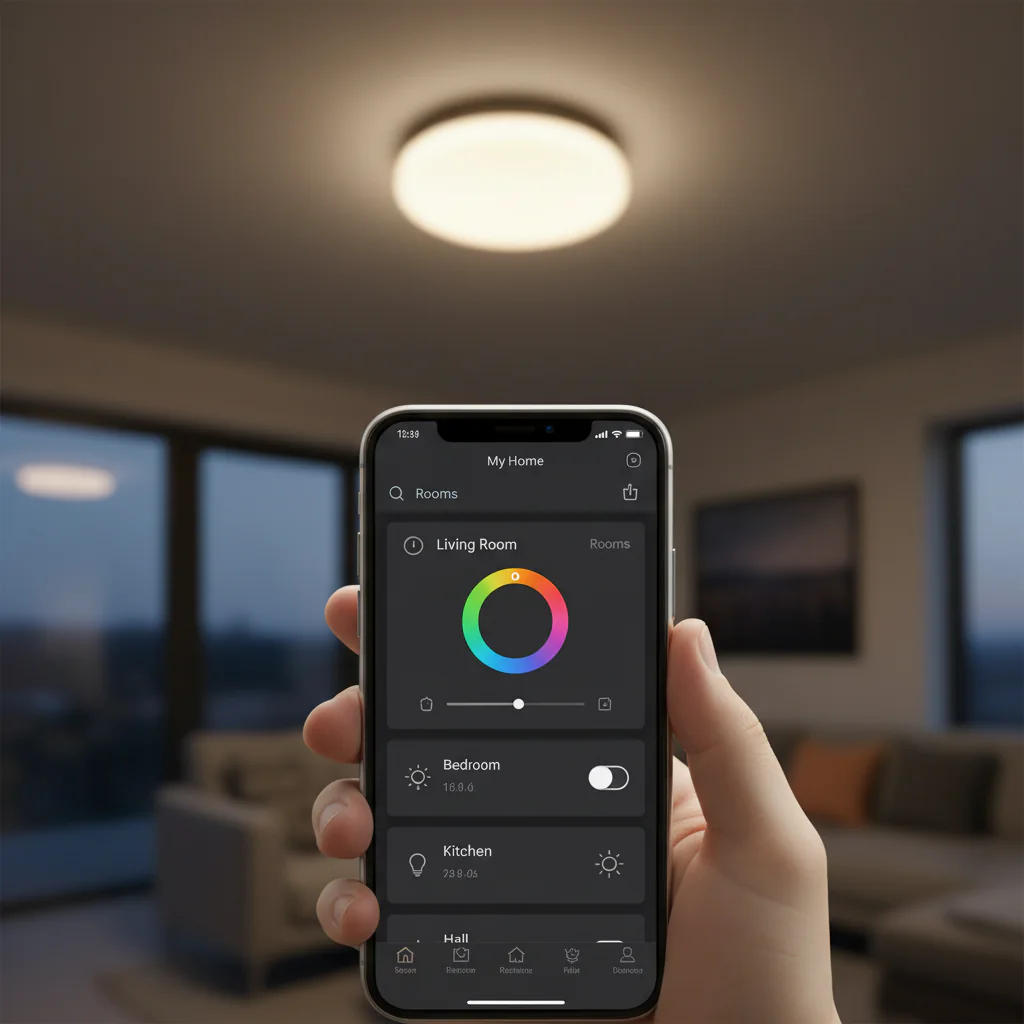
Before You Begin: The Pre-Setup Checklist
- Confirm your router broadcasts a 2.4GHz Wi-Fi network — virtually all modern routers do
- Know your 2.4GHz network name (SSID) and password — write it down before starting
- If your router uses a single combined name for 2.4GHz and 5GHz, you need to separate them (see Section 10 for how)
- Download the manufacturer app and create an account before unscrewing any existing bulbs
- Charge your phone to at least 50% — pairing requires Bluetooth and Wi-Fi active simultaneously on some apps
- Have fresh batteries or a charged device if using a voice assistant for the first time
Step 1: Physical Installation
- Turn off the light switch in the room you are starting with
- Remove the existing bulb and store it safely — you may need it later if you ever move
- Screw the smart bulb into the socket — it fits exactly like a standard bulb (E26/E27 or B22)
- Turn the light switch back ON — and leave it on permanently from this point forward
- The bulb will glow briefly and then flash several times — this indicates it is in setup mode
Most Important Rule: The physical wall switch must stay permanently in the ON position. Smart bulbs require constant power to maintain their Wi-Fi connection. Turning the wall switch off cuts all power to the bulb — it disconnects from Wi-Fi and smart control stops until power is restored. From now on, control this bulb exclusively through the app and voice commands.
Step 2: App Connection
- Open the manufacturer app (Kasa Smart, Wyze, LIFX, Govee Home, or Sengled Home)
- Tap the “+” or “Add Device” button
- Select “Smart Bulb” or your specific bulb model from the device list
- Follow the on-screen pairing wizard — it will ask for your Wi-Fi network name and password
- Select your 2.4GHz network specifically (not the 5GHz version if they have different names)
- Enter your Wi-Fi password and tap Connect
- The app will show a progress indicator — this takes 30-90 seconds
- The bulb will flash rapidly and then glow steadily when connected successfully
- Name the bulb precisely: “Living Room Left Lamp” not “Bulb 1” — this name is how you control it by voice
Step 3: Verification Test
- With the light switch remaining ON, tap the power button in the app — the bulb should turn off immediately
- Tap again — it should turn on
- Try adjusting brightness — it should respond within 1-2 seconds
- Try changing colour if applicable — the transition should be smooth
- If any of these fail, go to Section 10 (troubleshooting) before proceeding
6. How to Add Voice Control: Alexa and Google Home
Once your bulbs are working in their native app, linking to a voice assistant adds hands-free control at no cost and takes approximately 2-3 minutes.
Amazon Alexa Setup
- Open the Alexa app on your phone
- Tap “More” in the bottom right navigation bar
- Select “Skills & Games”
- Search for your bulb brand: “Kasa Smart”, “Wyze”, “LIFX”, or “Govee Home”
- Tap “Enable to Use” and sign in with your bulb app account credentials
- Tap “Discover Devices” — Alexa scans for all connected bulbs automatically
- All bulbs appear in the Devices section of the Alexa app
- Create groups: “Living Room” containing all living room bulbs allows “Alexa, turn off the living room” to control them all at once
- Test: “Alexa, turn on the [bulb name]” — it should respond within 2 seconds
Amazon Echo Dot (5th Gen) — Alexa voice assistant device
Google Home Setup
- Open the Google Home app
- Tap the “+” icon in the top left corner
- Select “Set up device”
- Choose “Works with Google” from the options
- Search for your bulb brand name and tap it
- Sign in with your bulb app account when prompted
- Your bulbs will be imported into Google Home automatically
- Create a room in Google Home and assign your bulbs to it
- Test: “Hey Google, dim the living room to 50%” — it should respond correctly
7. The 8 Best Automations to Set Up on Day One
App control is useful. Automation is transformative. These eight automations provide the majority of real daily value from smart lighting — set them up on your first day and you will wonder how you lived without them.
- Sunset trigger: all lights in occupied rooms turn on automatically at local sunset time every day. Your home is always lit when you arrive in the evening regardless of the time of year. Set once, runs forever.
- Morning alarm sync: bedroom light brightens gradually from 0% to 80% over 30 minutes ending at your alarm time. Light-based wake-up is measurably more effective than alarm sounds alone and produces a more natural transition from sleep.
- Late night auto-off: all lights switch off automatically at midnight or whatever time suits you. Eliminates the “I forgot to turn off the kitchen light” situation permanently.
- Movie mode scene: a single voice command (“Alexa, movie time”) dims all living room lights to 10-15% warm white and turns off overhead lights. A second command restores everything. Set this up as an Alexa Routine or Google Home Automation.
- Away mode: when your phone leaves the home Wi-Fi network (geofencing), all lights turn off automatically. Never leave lights burning in an empty house again.
- Arrival lighting: when your phone reconnects to home Wi-Fi on return, the hallway and main living area lights turn on at a comfortable brightness. Your home welcomes you every evening without you touching anything.
- Morning routine: on weekday mornings, kitchen and hallway lights turn on at 70% cool white (5000K) at your alarm time. Cooler colour temperature in the morning supports natural alertness. Warm amber in the evening supports natural sleep onset.
- Sleep preparation: bedroom light shifts automatically to warm amber (2500K) at 9pm every evening and dims to 30% at 10pm. This automated shift toward warm, dim light in the hours before sleep measurably improves sleep quality by supporting natural melatonin production.
8. When You Actually DO Need a Hub
Hub-free Wi-Fi works exceptionally well for most households. But there are specific situations where a hub-based Zigbee or Matter system genuinely performs better:
Large Homes With 20+ Smart Bulbs
Wi-Fi routers have device connection limits — typically 50-100 devices. A home with 30+ smart bulbs, plus phones, tablets, laptops, cameras, and smart speakers, can approach this limit. Zigbee systems use a mesh protocol where bulbs extend the network through each other, with only the hub occupying one Wi-Fi slot regardless of how many bulbs you have.
When Response Speed Is Critical
Wi-Fi smart bulbs respond in 1-3 seconds depending on network conditions. Zigbee bulbs respond in under 0.5 seconds because commands travel directly over the local mesh rather than round-tripping through cloud servers. For light switches that need immediate response, this difference is noticeable.
When Internet Access Is Unreliable
Wi-Fi smart bulbs require internet connectivity for app and voice control. Zigbee hubs process commands locally — your lights respond to app and voice commands even when your broadband is down, because everything operates on your local network.
Professional Multi-Room Installations
If you are installing smart lighting in 8+ rooms with complex automation requirements, a Zigbee hub like Philips Hue Bridge or IKEA Dirigera provides better stability, faster response, and more sophisticated group management.
Philips Hue Starter Kit (Bridge + 3 bulbs)
9. Hub-Free vs Hub-Based vs Matter: Full Comparison
| Factor | Wi-Fi (No Hub) | Zigbee (Hub Required) | Matter (Newest) |
| Setup difficulty | 5 mins, app only | 20 mins, hub first | 5 mins, QR code scan |
| Extra hardware needed | None — zero cost | Hub: $60-80 extra | None if router is modern |
| Response speed | 1-3 seconds | Under 0.5 seconds | Under 1 second |
| Works offline | No (needs internet) | Yes (local network) | Yes (local network) |
| Apple HomeKit | LIFX only | Via Hue app/bridge | Yes (all brands) |
| Max bulbs per home | Limited by router | Effectively unlimited | Effectively unlimited |
| Cloud dependency | Yes (most brands) | Hub only | Minimal (local first) |
| Best for | Beginners, renters | Large homes, power users | Future-proofed setups |
| 2026 availability | Widest selection | Established brands | Growing rapidly |
Matter is the most interesting development for 2026. Matter-certified Wi-Fi bulbs get the best of both worlds — direct Wi-Fi connection with no hub, plus local processing that works offline, plus compatibility with every voice assistant simultaneously. The range of Matter bulbs is still smaller than traditional Wi-Fi options but growing monthly.
10. Common Problems and Exact Fixes
Problem: Bulb will not connect during setup
Cause in 95% of cases: 5GHz Wi-Fi network. Smart bulbs only support 2.4GHz. If your router broadcasts a combined network name (e.g. “HomeWifi”) for both bands, your phone may be connected to 5GHz while the bulb tries to join 2.4GHz — causing the pairing to fail silently.
Exact fix: log into your router admin panel (usually 192.168.1.1 or 192.168.0.1 in a browser). Find Wireless Settings. Give the 2.4GHz and 5GHz bands different names — e.g. “HomeWifi_2.4” and “HomeWifi_5G”. Connect your phone to the 2.4GHz network specifically before re-attempting bulb setup.
Problem: Bulb connected but goes offline regularly
Cause: weak Wi-Fi signal at the bulb location. 2.4GHz has longer range than 5GHz but still degrades through walls.
Exact fix: check Wi-Fi signal strength at the bulb location using your phone. If bars are 2 or fewer, add a Wi-Fi range extender or mesh node in a location between your router and the bulb. The TP-Link RE315 range extender ($25-35) is a reliable budget option that resolves most coverage gaps.
TP-Link RE315 Wi-Fi Range Extender
Problem: Voice commands work sometimes but not reliably
Cause: the Alexa or Google Home skill token has expired or the bulb was added after the skill was linked.
Exact fix: in the Alexa app, disable the bulb brand skill completely, then re-enable it and sign in again. Then tap “Discover Devices”. This refreshes the authentication token and resolves the majority of intermittent voice control failures.
Problem: Dimmer switch in the room
Standard smart bulbs are incompatible with trailing-edge or leading-edge dimmer switches. The dimmer regulates voltage to dim the bulb, which interferes with the smart bulb electronics and causes flicker, buzzing, or complete failure to connect.
Exact fix: replace the dimmer with a standard on/off switch — a basic replacement takes 10 minutes and costs $5-8. Alternatively, Kasa and a few other brands offer smart bulbs specifically designed for dimmer compatibility (check the product page for “Dimmer Compatible” note).
Problem: Physical switch keeps getting turned off
If other household members keep turning the wall switch off (losing smart control), fit a smart switch guard — a plastic cover that clips over the switch and prevents it being flipped off accidentally. These cost $3-8 and completely solve the problem.
11. Frequently Asked Questions
Can I use smart bulbs with a ceiling fan light kit?
Yes, in most cases. Standard E26 ceiling fan light kits accept smart bulbs exactly like any other fixture. The important exception is ceiling fans with built-in remote control systems — some of these regulate voltage in a way similar to dimmer switches, causing connection issues. If your ceiling fan has a wall-mounted remote receiver, test one smart bulb first before committing to the full kit.
Do smart bulbs increase my electricity bill?
Marginally. Smart bulbs in connected standby (on but not illuminating) draw 0.3-0.5 watts each to maintain Wi-Fi connectivity. For a home with 12 smart bulbs running 24 hours in standby, this costs approximately $0.50-0.75 per month in additional electricity. This is entirely offset by the energy savings from scheduling — lights that switch off automatically at midnight and turn on only at sunset use significantly less electricity than manually controlled lights that owners forget to turn off.
Will smart bulbs work with a smart switch instead of a smart bulb?
Yes — smart switches are an alternative approach. Instead of replacing the bulb, you replace the wall switch with a smart switch that controls power to the existing (non-smart) bulb. Smart switches are better for overhead fixtures with multiple bulbs, rooms where people habitually use the wall switch, and situations where you want consistent smart control without explaining to visitors not to use the switch. The trade-off: smart switches do not allow individual bulb colour control — they control the entire circuit.
Can I set different colours in different bulbs in the same room simultaneously?
Yes — each bulb is an independent device. You can set the lamp by the sofa to warm amber while the ceiling light is cool white. This requires either individual control in the app or creating a “scene” that specifies each bulb separately. Alexa Routines and Google Home Automations both support multi-bulb scenes with individual settings.
What happens to my automations if my internet goes down?
Schedules stored on the bulb or cloud server will continue running during internet outages on most brands. Kasa and Wyze store schedule data on the bulb hardware — your sunset lights-on schedule fires even without internet. Geofencing automations that depend on phone location data will pause until internet is restored.
How many smart bulbs can my router handle?
Most modern home routers support 50-100 simultaneous device connections. A typical smart home with 15 smart bulbs, 4 phones, 2 laptops, a tablet, 3 smart speakers, and 2 cameras uses approximately 27 connections — well within range. If you plan to deploy 30+ smart bulbs in a large home, consider a mesh Wi-Fi system (TP-Link Deco, Eero, or Google Nest WiFi) which distributes connections across multiple nodes and typically supports 200+ simultaneous devices.
TP-Link Deco Mesh Wi-Fi System (3-pack)
Are there smart bulbs that work without any internet at all?
Matter-certified smart bulbs with local processing work over your home network without requiring internet connectivity for basic on/off and dimming control. The Nanoleaf Essentials and certain Aqara Matter bulbs operate locally. Full remote access (controlling from outside your home) still requires internet, but local voice and app control within your home network works offline. This is the most significant privacy and reliability advantage of Matter over traditional cloud-based Wi-Fi bulbs.
Nanoleaf Essentials Matter Smart Bulb — ~$12-15 per bulb —
Can my smart bulbs be hacked?
The realistic risk of targeted hacking for residential smart bulbs is extremely low. Standard security precautions apply: use a strong unique password for your bulb brand account, enable two-factor authentication where available, and keep bulb firmware updated. Most manufacturers release regular security patches. As an additional layer, placing smart bulbs on a separate IoT Wi-Fi network (many modern routers support a guest or IoT network) isolates them from your main devices.
12. Our Final Verdict: What Actually Works
Smart lighting without a hub works exceptionally well in 2026. For the vast majority of homes — single properties, apartments, first-time smart home buyers — Wi-Fi smart bulbs provide every feature they actually need with zero additional hardware, zero setup complexity, and an experience that is noticeably better than hub-based systems were five years ago.
The TP-Link Kasa KL135 remains the definitive recommendation for most buyers. Reliable connection, excellent app, full colour capability, and Alexa and Google Home integration that requires no technical knowledge to set up. Buy a 4-pack, install them in your main living area this afternoon, set up the 8 automations in Section 7, and you will have the complete hub-free smart lighting experience by this evening.
For Apple HomeKit households: buy LIFX. It is more expensive but it is the only Wi-Fi bulb with genuinely reliable HomeKit integration.
For the most future-proof option: buy Matter-certified bulbs. They work without a hub, work locally without internet, work with every voice assistant simultaneously, and will remain compatible regardless of how the smart home ecosystem evolves.
The bottom line: a hub is not needed, not recommended for most buyers, and not how most people set up smart lighting in 2026. The myth persists because review sites keep republishing hub-centric guides written in 2019. Buy Wi-Fi bulbs. Skip the hub. Your lights will be smart by tonight.
You Might Also Like

James is the voice behind our beginner-friendly setup guides. As a self-taught smart home enthusiast, he understands exactly what first-time buyers need to know.
All articles by James →