
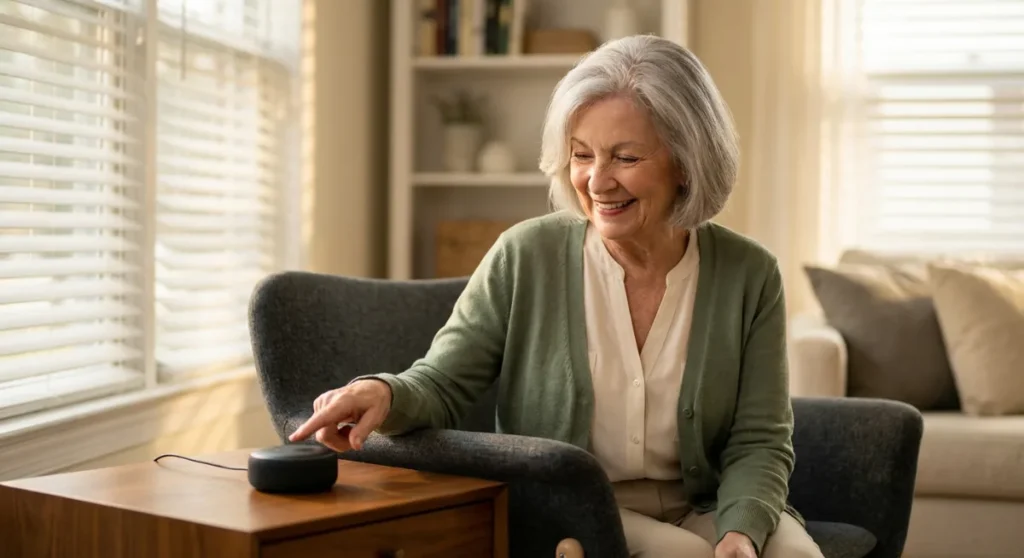
Last month, I watched my 78-year-old neighbor Mary argue with her new Echo Dot for twenty minutes. She was trying to play Frank Sinatra, but kept saying “Alexa, play Franklin Sinatra” with increasing frustration. By the end, she was practically shouting at the poor device.
Sound familiar?
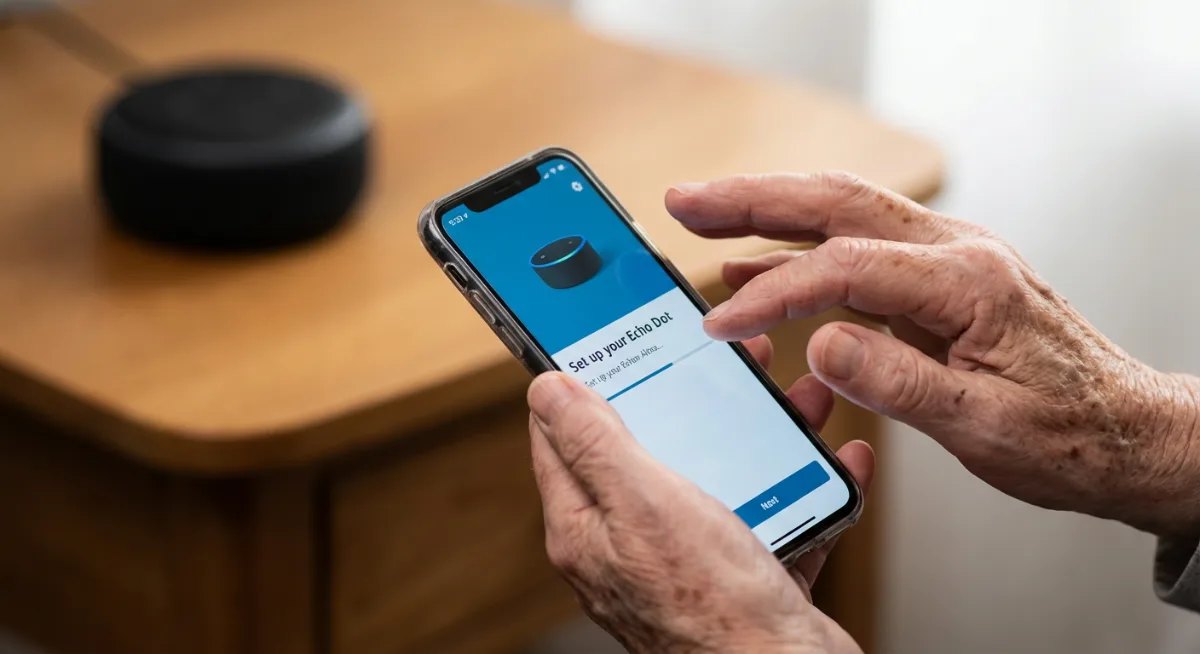
Here’s what struck me: Mary’s daughter had simply unboxed the Echo, plugged it in, and left her mom to figure it out. Well-meaning, sure. But also a recipe for disaster. Setting up an Amazon Echo for elderly parents isn’t just about plugging in a device — it’s about creating a bridge to technology that feels safe, useful, and genuinely helpful.
The good news? I’ve now helped twelve seniors in my neighborhood get their Echo devices humming along perfectly. And honestly, once you know the tricks, it’s not rocket science. But skip these steps, and you’ll end up with an expensive paperweight that makes your parents feel defeated by technology all over again.
Why Your Parents Need an Echo More Than You Think
Let’s address the elephant in the room first. Your parents probably don’t want another gadget cluttering their space. They’ve lived just fine without talking to their appliances, thank you very much.
But here’s the thing — voice technology isn’t just convenient for seniors. It’s genuinely life-changing.
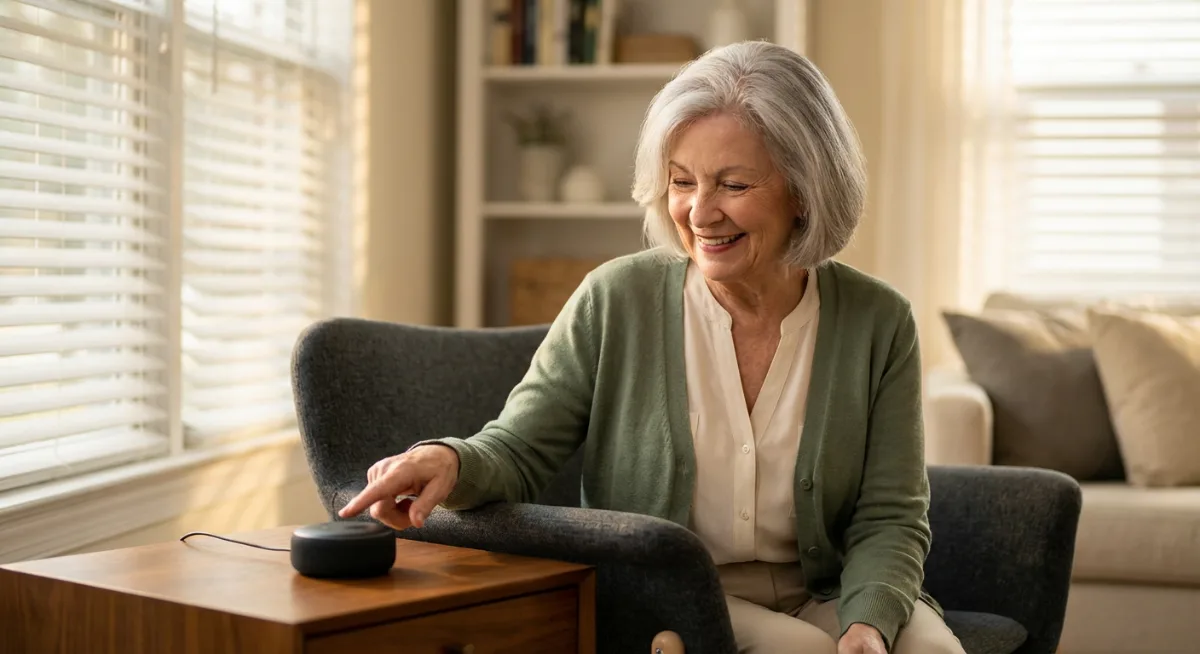
Think about it: arthritis makes typing painful. Vision problems make reading small text nearly impossible. Balance issues make getting up to adjust the thermostat risky. An Echo removes all those barriers with simple voice commands.
My friend’s dad, who has Parkinson’s, couldn’t reliably dial phone numbers anymore. Now he calls family members by saying “Alexa, call Sarah.” No fumbling with tiny buttons. No frustration. Just connection.
The Echo Dot (5th Generation) has become his lifeline to independence.
The Pre-Setup Conversation You Must Have
Before you even order the device, sit down with your parents. Seriously.
Start by asking what they struggle with most in their daily routine. Is it remembering medications? Staying in touch with family? Managing appointments? The Echo can help with all of these, but only if they understand the benefits upfront.
I learned this lesson the hard way when I surprised my aunt with an Echo Show for Christmas. She thanked me politely, then left it in the box for six months. Why? Because I never explained what it could do for her specific needs.
When we finally had that conversation, everything clicked. She wanted to video chat with her grandchildren but found Zoom too complicated. The Echo Show’s “Drop In” feature was perfect. Simple voice command, instant connection.
Setting Realistic Expectations
Be honest about what the Echo can and can’t do. It won’t replace human interaction or solve every problem. But it will make certain tasks dramatically easier.
Most seniors worry about privacy (rightfully so) and cost (also fair). Address these concerns head-on. Explain the mute button, show them how to review voice recordings, and be transparent about any ongoing costs for premium features.
Choosing the Right Echo Device for Senior Living
Amazon offers more Echo varieties than coffee shop menu options these days. But for seniors, less is often more.
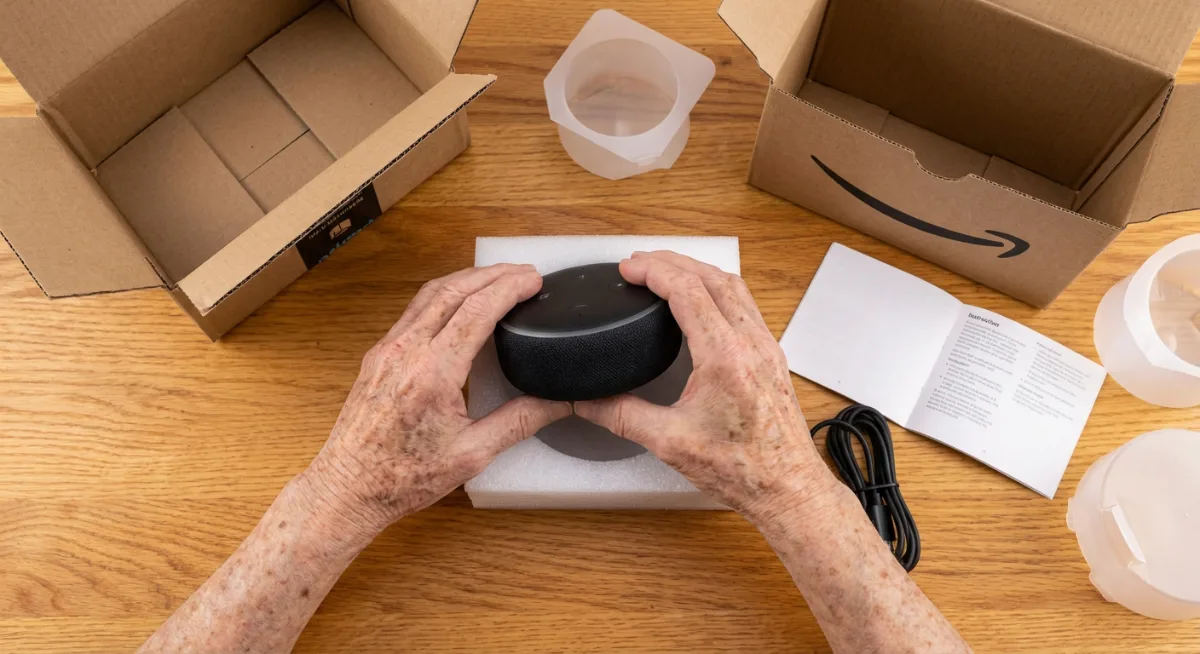
The Echo Dot (5th Gen) is my go-to recommendation for most elderly users. It’s compact, affordable, and has surprisingly good sound quality. Plus, the spherical design makes it less intimidating than the cylindrical models (I know, it sounds silly, but perception matters).
For parents with hearing difficulties, the Amazon Echo (4th Gen) offers significantly better sound. The bass response helps with voice clarity, especially for music and phone calls.
Read the next Article: Smart Plug Setup Guide
When to Consider the Echo Show
The Echo Show 8 seems like overkill until you consider the visual element. For seniors who are more visual learners, seeing weather forecasts, calendar appointments, and family photos can make the device feel more intuitive.
But here’s what most people miss: the visual feedback also helps with voice recognition issues. When Alexa mishears a command, seeing the transcription on screen helps users understand what went wrong.
Skip the Echo Show 15. It’s massive, expensive, and frankly overwhelming for most seniors. The sweet spot is the Show 8 — big enough to see clearly, small enough to feel manageable.
The Step-by-Step Setup Process (The Right Way)
Here’s where most adult children go wrong: they set everything up themselves, then hand over a pre-configured device. Don’t do this.
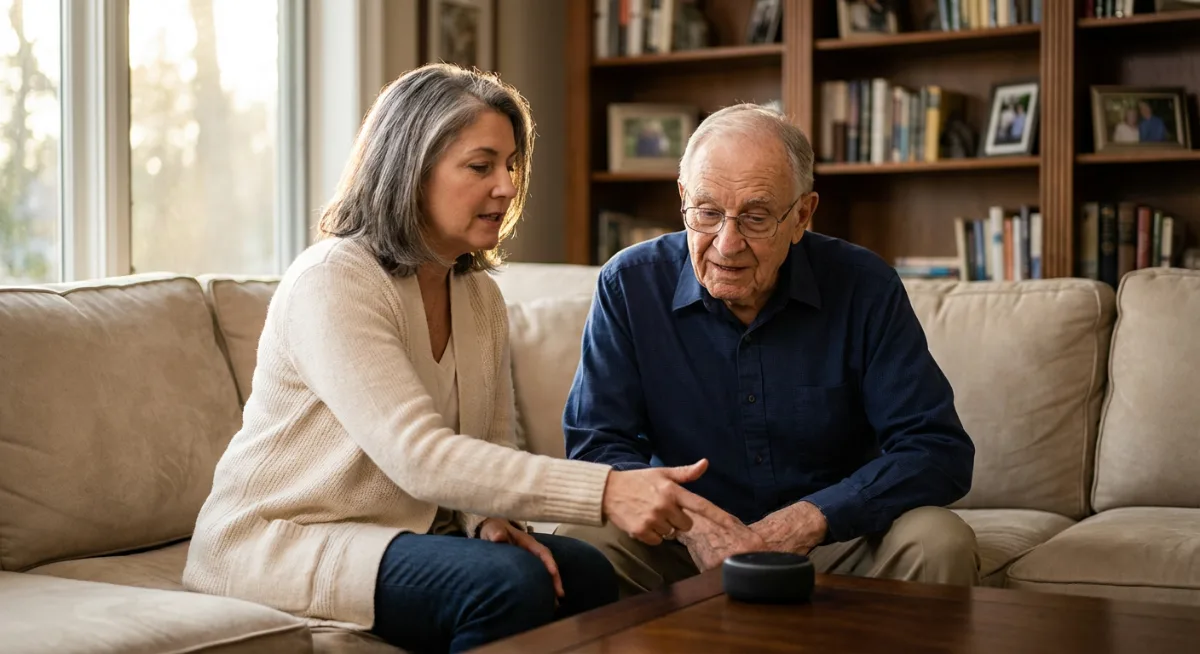
Your parents need to be part of the setup process. It builds confidence and familiarity from day one.
Phase 1: Physical Placement Strategy
Location matters more than you’d think. The Echo needs to be within earshot of where your parents spend most of their time, but not so central that it feels intrusive.
I’ve found kitchen counters work well — close to the morning routine, away from the TV’s interference, and at the right height for clear voice recognition. Avoid bedrooms initially; many seniors find the idea of a listening device in their private space unsettling.
Pro tip: Place it at least three feet from TVs and radios. Background noise is the enemy of voice recognition, especially for older voices that may be softer or less distinct.
Next Article to Read: Smart AI security Cameras
Phase 2: App Installation and Account Setup
This is where you’ll do most of the heavy lifting, but involve your parents in every decision. Download the Alexa app on your phone (and theirs if they have a smartphone).
Create the Amazon account using their email address, not yours. This ensures they maintain ownership and control. Use a simple, memorable password — I know, I know, security experts will cringe, but a password they can actually remember beats a perfect one they’ll never use.
During account creation, make sure to set up their voice profile. This helps Alexa understand their speech patterns from the start.
Phase 3: Customization That Actually Matters
Skip the flashy skills initially. Focus on the basics:
- Set up their address for accurate weather and local information
- Add important contacts for hands-free calling
- Configure their preferred news sources (BBC, NPR, whatever they trust)
- Set their time zone and preferred units (Fahrenheit vs. Celsius)
Here’s the trick most guides miss: customize the wake word if “Alexa” feels awkward. “Echo,” “Amazon,” or “Computer” might feel more natural to some seniors.
Essential Skills Every Senior Should Have
The Alexa Skills Store is overwhelming — thousands of options that mostly add complexity without value. For seniors, I recommend starting with these core skills:
Health and Medication Management
The MyTherapy Medication Reminder skill is genuinely life-changing for parents managing multiple prescriptions. It provides personalized reminders and can even track when medications were taken.
But don’t overwhelm them with health tracking skills right away. Start with medication reminders, then gradually add others based on their comfort level.
Communication Made Simple
Enable calling and messaging, but here’s the crucial part: practice the commands together. “Alexa, call [contact name]” should become as natural as picking up the old rotary phone (okay, maybe not that natural, but you get the idea).
The Drop In feature between family Echo devices can be amazing, but requires careful setup. Enable it only with trusted family members and explain how it works to avoid privacy concerns.
Entertainment Without Overwhelm
Music can be tricky. If your parents have Spotify or Apple Music, great. If not, Amazon Music’s free tier provides plenty of options. The key is setting up their favorite artists and genres beforehand.
Radio stations often work better than streaming music for seniors. “Alexa, play the oldies station” feels more familiar than navigating playlists.
Overcoming the Most Common Obstacles
Every senior faces these challenges. Address them proactively, and you’ll save hours of frustration.
The Volume Confusion
Your parents will either whisper to Alexa like it’s sleeping in the next room, or shout like it’s hard of hearing. Neither works well.
Demonstrate the optimal speaking volume and distance during setup. Normal conversation tone, three to six feet away. Practice a few commands together so they get the feel for it.
Command Phrasing Problems
Seniors often use overly polite or complex phrasing. “Alexa, would you mind terribly playing some music by Frank Sinatra, please?” doesn’t work as well as “Alexa, play Frank Sinatra.”
Create a cheat sheet with common commands written in simple, direct language. Laminate it and keep it nearby for reference.
The Mishearing Spiral
When Alexa doesn’t understand a command, many seniors repeat it louder and more frantically. This actually makes recognition worse.
Teach the reset approach: if Alexa doesn’t understand, pause, speak clearly and normally, and try a slightly different phrasing. “Alexa, stop” always works to cancel a confused response.
Safety Features That Provide Peace of Mind
This is where the Echo really shines for elderly users, but most families don’t know these features exist.
Emergency Calling Setup
The Ask My Buddy emergency skill can send alerts to family members in case of emergencies. It’s not a replacement for medical alert systems, but it’s a valuable backup.
For more comprehensive coverage, consider pairing the Echo with a proper medical alert device. The two systems complement each other perfectly.
Routine Automation for Safety
Set up routines that promote safety without feeling intrusive. A “Good morning” routine can provide weather, medication reminders, and the day’s schedule. A “Good night” routine can lock smart locks and turn off lights.
But here’s the thing — let your parents trigger these routines manually at first. Automated routines can feel creepy or overwhelming initially.

Tools Worth Checking Out
Beyond the Echo itself, a few additional tools can enhance the experience for elderly users:
- Amazon Large Button Remote – Perfect for seniors who want physical controls as backup
- Echo Buttons Accessibility Pack – Physical buttons for common commands
- Basic Smart Plugs – Start simple with lamps and radios before advancing to complex devices
- Laminated Voice Command Reference Cards – Keep common commands visible and accessible
- Bluetooth Amplified Speaker – For seniors with hearing difficulties who need extra volume
Long-term Success Strategies
The real test comes three months after setup. Will your parents still be using the Echo, or will it be gathering dust next to the unused bread maker?
Success requires ongoing support, but not the kind you think.
The Weekly Check-in Approach
Don’t ask “How’s the Alexa working?” Ask specific questions: “What did you listen to this week?” or “Did you remember to ask about the weather this morning?” These questions feel supportive rather than patronizing.
Look, the goal isn’t to turn your parents into tech wizards. It’s to give them tools that genuinely improve their daily lives. Sometimes that means using 10% of the Echo’s capabilities perfectly rather than struggling with 100%.
Gradual Feature Introduction
Once they’re comfortable with basics, introduce one new feature monthly. Smart home controls, additional news sources, or new music services. But only if they express interest.
The biggest mistake I see families make is pushing too hard, too fast. Your parents lived productive, fulfilling lives before voice assistants existed. The Echo should enhance their lifestyle, not overwhelm it.
When Things Go Wrong (And They Will)
Technology fails. Internet goes down. Alexa mishears commands spectacularly. Your parents need to know this is normal and fixable.
Create a simple troubleshooting guide:
- If Alexa isn’t responding, check if the mute button is pressed
- If commands aren’t working, try “Alexa, stop” and start over
- If nothing works, unplug for 30 seconds and plug back in
- If problems persist, call you (not Amazon support — that’s too stressful for most seniors)
Most importantly, normalize these hiccups. Share stories about your own technology frustrations. It reduces the shame factor when things don’t work perfectly.
Privacy Concerns and How to Address Them
Your parents grew up in an era when privacy was default, not an option. Respect those concerns — they’re valid.
Show them the mute button and explain exactly what it does. Demonstrate how to review and delete voice recordings through the app. Be transparent about what data Amazon collects and how to limit it.
Honestly, some privacy concerns can’t be completely eliminated with any smart device. If your parents aren’t comfortable with the tradeoffs, respect that decision. A traditional phone and radio might be the better choice, and that’s okay.
Frequently Asked Questions
How much does an Echo cost to operate monthly?
The basic Echo functions are free with an Amazon account. Premium features like Amazon Music Unlimited or Audible require subscriptions, but these are optional. The device itself uses minimal electricity — maybe $2-3 per year.
Can elderly parents use Echo if they don’t have smartphones?
Absolutely. While the Alexa app makes setup easier, once configured, the Echo works entirely through voice commands. You can manage their device remotely through your own app if needed.
What if my parents have thick accents or speech difficulties?
Alexa has improved significantly with accent recognition, but it’s not perfect. Spend extra time on voice profile setup, speak at consistent volume and pace, and be patient with the learning curve. The voice recognition improves with use.
Is it safe to leave Echo plugged in all the time?
Yes, Echo devices are designed for continuous operation. They use very little power and don’t pose safety risks when left plugged in. The mute button provides privacy control when needed.
What happens if the internet goes down?
Most Echo functions require internet connectivity. Without wifi, it becomes a fancy paperweight. This is why maintaining some traditional backups (like a regular phone) remains important for seniors.
Can family members access my parents’ Echo remotely?
With permission and proper setup, yes. Family members can be added as authorized users, allowing them to make announcements, check on routines, or help with troubleshooting. All access requires explicit permission from the account owner.
Setting up an Amazon Echo for elderly parents isn’t about turning them into tech enthusiasts. It’s about building a bridge between the analog world they understand and the digital tools that can genuinely improve their lives.
The key is patience, realistic expectations, and remembering that success looks different for everyone. Maybe your dad will only ever use it for weather reports and Frank Sinatra. Maybe your mom will become the queen of smart home automation. Both outcomes are victories if the device adds value to their daily routine.
Technology should serve people, not the other way around. When you approach Echo setup with that philosophy, you’re not just installing a device — you’re giving your parents a tool for maintaining independence, staying connected, and aging in place with confidence.
And who knows? You might just help them discover that talking to technology isn’t so scary after all. Even if they do still say “thank you” to Alexa after every command. (Which, honestly, is kind of endearing.)
You Might Also Like

James is the voice behind our beginner-friendly setup guides. As a self-taught smart home enthusiast, he understands exactly what first-time buyers need to know.
All articles by James →