
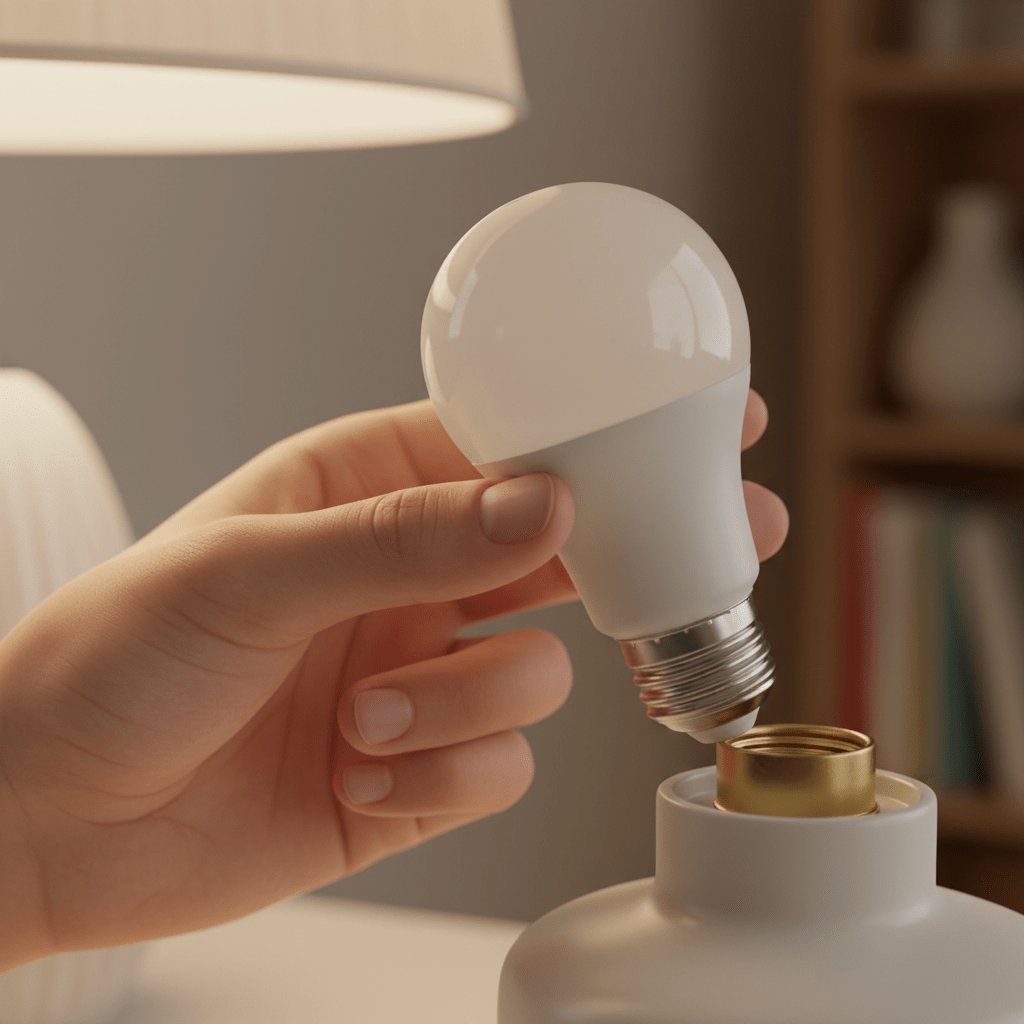
Smart bulbs occasionally stop responding, refuse to connect, or need to be set up on a new Wi-Fi network. The solution in almost every case is a factory reset — a procedure that wipes the bulb back to its original settings so it can be paired fresh.
The problem is that the reset method differs between brands. Kasa bulbs reset differently from Wyze bulbs, which reset differently from Govee and LIFX. Most manufacturers bury the reset instructions in a support article that takes ten minutes to find. This guide puts every major brand in one place so you can reset any smart bulb in under two minutes.
1. Why You Might Need to Reset a Smart Bulb
There are four common reasons to reset a smart bulb:
- The bulb stopped responding to the app or voice commands and standard troubleshooting has not fixed it
- You are moving to a new home and need to connect the bulb to a different Wi-Fi network
- You are giving the bulb to someone else and need to clear your account and settings from it
- The bulb shows as connected in the app but the light does not respond to any command
A reset clears everything — Wi-Fi credentials, account pairing, scenes, and schedules. After a reset the bulb behaves exactly as it did when it was brand new in the box. You will need to pair it again from scratch using the manufacturer app.
Before You Reset: Try turning the physical switch off and on once, waiting 10 seconds, and checking the app. Also check whether your Wi-Fi router is working. A reset is not always necessary — sometimes a simple power cycle resolves connectivity issues.
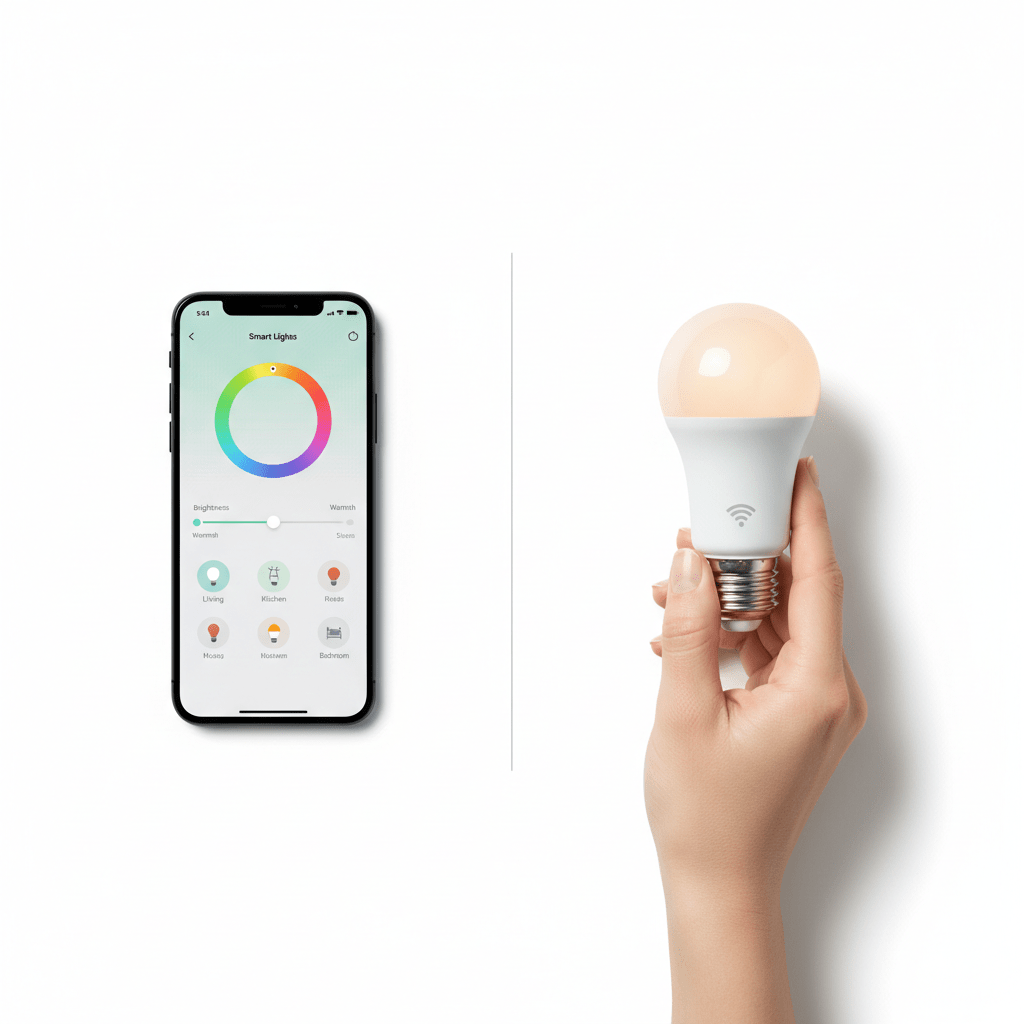
2. How to Reset TP-Link Kasa Smart Bulbs (KL130, KL135, KL150)
Kasa bulbs use a power cycle reset method:
- Ensure the bulb is screwed into a working socket and the wall switch is in the ON position
- Turn the wall switch OFF and wait 2 seconds
- Turn ON — wait 2 seconds — turn OFF. Repeat this OFF/ON cycle 5 times in total
- On the 5th ON, leave the switch on and watch the bulb
- The bulb will flash rapidly 3 times to confirm the reset is complete
- The bulb is now in pairing mode — open the Kasa Smart app and add it as a new device
Kasa Tip: Count carefully — it must be exactly 5 off/on cycles. Fewer cycles will not trigger the reset. The flash confirmation is quick so watch the bulb closely on the 5th power-on.
Check Amazon for prices of TP-Link Kasa KL135 4-Pack Smart Bulbs
3. How to Reset Wyze Bulbs (Wyze Bulb Color, Wyze Bulb White)
Wyze bulbs also use a power cycle method but require 3 cycles:
- Ensure the bulb is in a working socket with the switch ON
- Turn the switch OFF — wait 1 second — turn ON. This is cycle 1
- Repeat: OFF (1 second) — ON. This is cycle 2
- Repeat once more: OFF (1 second) — ON. This is cycle 3
- After the 3rd power-on, wait 3 seconds
- The bulb will flash twice rapidly to confirm the reset
- Open the Wyze app and add the bulb as a new device
If the bulb does not flash after 3 cycles, try the sequence again more slowly — some users find that a 2-second pause between each off and on works more reliably.
Check Amazon for Wyze Bulb Color 4-Pack
4. How to Reset Govee Smart Bulbs (H6008, H6009 and most Govee bulbs)
- Ensure the bulb is installed and the switch is ON
- Turn the switch OFF — wait 2 seconds — turn ON (cycle 1)
- Repeat 4 more times for a total of 5 OFF/ON cycles
- On the 5th power-on, the bulb will flash 3 times to confirm reset
- Open the Govee Home app and add the bulb as new
Govee also provides an in-app reset option for bulbs that are currently connected: open Govee Home → tap the device → tap the settings gear icon → scroll to Reset Device. This method is preferable when the bulb is still responding to the app.
Check Amazon for prices of Govee Smart Bulbs 4-Pack (H6008)
5. How to Reset LIFX Bulbs (A19, Mini, BR30)
LIFX bulbs use a slightly different pattern — 5 cycles with specific timing:
- Ensure the bulb is installed and switch is ON
- Rapidly toggle the switch: ON for 5 seconds, OFF for 5 seconds — repeat 5 times
- On the 5th ON, the bulb begins a rainbow colour cycle to confirm reset
- Wait for the rainbow cycle to finish — the bulb will then pulse warm white indicating pairing mode
- Open the LIFX app and add the bulb as a new device
LIFX also has an in-app reset: LIFX app → tap the bulb → tap the settings icon → Bulb Details → Reset to Factory Settings. Use this when the bulb is still connected.
Check amazon for prices of LIFX A19 Wi-Fi Smart Bulb
6. How to Reset Philips Hue Bulbs
Philips Hue bulbs can be reset in three ways depending on your setup:
Method 1: Via the Hue App (Easiest — Bulb Must Still Be Connected)
- Open the Philips Hue app
- Go to Settings → Lights
- Tap the bulb you want to reset
- Scroll down and tap Delete
- Confirm deletion — the bulb is now unpaired and ready to pair fresh
Method 2: Via Hue Dimmer Switch (Bulb Does Not Need to Be Connected)
- Hold the Hue Dimmer Switch within 5cm of the bulb
- Hold the Setup button (the small button at the top of the dimmer) for 10 seconds
- The bulb will flash 5 times to confirm the reset
- Return to the Hue app and add the bulb as a new light
Method 3: Power Cycle (Last Resort for Non-Responsive Bulbs)
- Turn the bulb on and off 6 times with a 2-second gap between each
- The bulb flashes 3 times to confirm reset
- Add back via the Hue app
Philips Hue White and Colour Ambiance Starter Kit
7. How to Reset Sengled Smart Bulbs
- Install the bulb in a working socket with switch ON
- Toggle OFF and ON 10 times with a 1-second gap between each
- The bulb will flash 3 times to confirm factory reset
- Open the Sengled Home app and add as a new device
Sengled bulbs require more cycles than most other brands — 10 rather than 5. This is by design and not an error.
Check Amazon for prices of Sengled Smart Wi-Fi LED Bulb
8. How to Remove a Smart Bulb From Amazon Alexa
Resetting the physical bulb does not automatically remove it from Alexa. After resetting, also remove it from the Alexa app to prevent ghost devices:
- Open the Alexa app on your phone
- Tap Devices in the bottom navigation bar
- Find the bulb (it may show as offline after the reset)
- Tap the bulb → tap the settings gear icon → tap Trash icon to delete
- After re-pairing the bulb through the manufacturer app, go back to Alexa → Skills → find your bulb brand → Discover Devices
9. How to Remove a Smart Bulb From Google Home
- Open the Google Home app
- Tap and hold the bulb tile until options appear
- Tap Settings → tap the trash icon → confirm removal
- After re-pairing through the manufacturer app, open Google Home → tap + → Set up device → Works with Google → rediscover
10. What to Do If the Reset Does Not Work
The bulb does not flash after the power cycles
The switch is not toggling fast enough or the timing is off. Try using a lamp with a toggle switch that you can click rapidly rather than a rocker wall switch. Aim for one full off/on cycle per second.
The bulb flashes but then goes offline again immediately
The bulb reset successfully but is connecting to a Wi-Fi network it cannot join. It is trying to reconnect to the old network credentials. This resolves when you pair it to the new network through the app setup wizard.
The bulb will not enter pairing mode after reset
Some bulbs require a specific power state to enter pairing mode. After the reset flash, the bulb should be left with the switch in the ON position continuously. If the bulb dims or changes colour but does not appear as discoverable in the app, try a second reset cycle.
The bulb is not listed in the app after factory reset
Some apps (particularly Govee) cache old device data. Force-close the app completely, reopen it, and tap Add Device fresh. The reset bulb should appear as a new discoverable device.
11. Frequently Asked Questions
Will resetting a smart bulb delete my scenes and automations?
Yes — a factory reset wipes all settings stored on the bulb itself, including Wi-Fi credentials and any locally stored schedules. However, scenes and automations stored in your app account or voice assistant are not deleted. When you re-pair the bulb after the reset, your existing routines will apply to it again automatically once you add it back to the same device group.
Do I need to reset a smart bulb before selling or giving it away?
Yes — always factory reset a smart bulb before passing it to someone else. Without a reset, the bulb retains your Wi-Fi credentials and remains linked to your account. The new owner would not be able to pair it to their setup. After a reset, the bulb is completely clean and the new owner pairs it as if it were brand new.
Can I reset a smart bulb without the original app?
Yes — the physical power cycle reset method works without any app installed on your phone. The bulb resets based purely on the power toggle sequence regardless of whether the manufacturer app is present. You will need the app to re-pair the bulb after the reset, but the reset itself is app-independent.
How long does a smart bulb reset take?
The power cycle sequence takes approximately 15-30 seconds to perform. The bulb confirms the reset within 2-3 seconds of the final power-on. Total reset time including the confirmation flash: under 60 seconds for all brands covered in this guide.
Why does my smart bulb keep disconnecting even after resetting?
The most common cause is weak Wi-Fi signal at the bulb location. Smart bulbs require a stable 2.4GHz signal to maintain connection. Check signal strength at the bulb location using your phone. If signal is weak, add a Wi-Fi range extender. The second most common cause is a 5GHz-only network — ensure you are connecting the bulb to the 2.4GHz band specifically.
Can I reset multiple smart bulbs at the same time?
No — reset each bulb individually. The power cycle method requires toggling the specific circuit that powers that bulb. In a room with multiple bulbs on the same switch, all bulbs on the circuit will reset simultaneously — which is useful for resetting a whole-room setup at once, but makes targeted individual resets impossible without controlling individual sockets.
Read next: How to Set Up Smart Lights Without a Hub in 2026
You Might Also Like

Priya holds a background in cybersecurity and brings a technical eye to every camera, doorbell, and smart lock review, specializing in privacy and encryption.
All articles by Priya →